| Sobolsoft - How To Download and Install Sobolsoft Software |
| Note: These apps are intended to be used on Windows PC, not Mac or mobile devices. |
|
1.) Go to
www.sobolsoft.com and click on an application such as
|
| 2.) Read the application description. To start downloading, click on the Download Now link or |
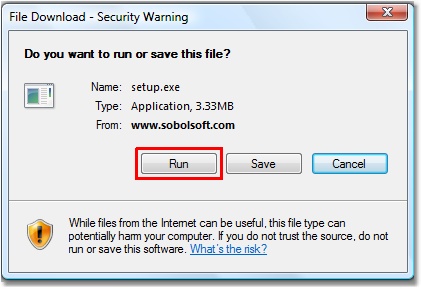
| 3.) When prompted, choose "Run". |
![]() |
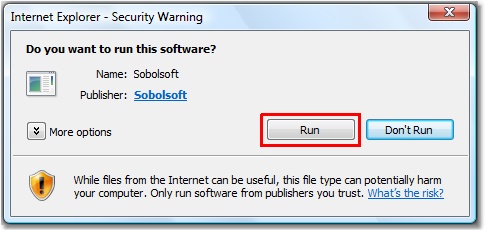
| 4.) If prompted by Windows security, choose "Run" again. |
![]() |
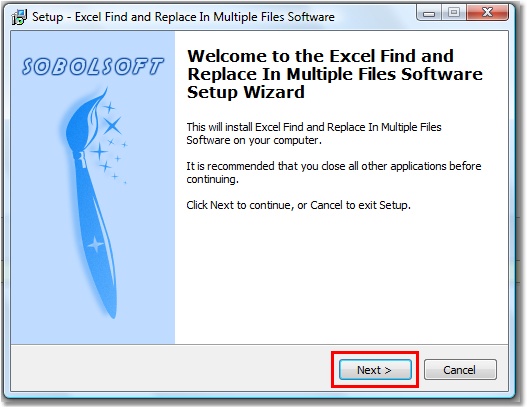
| 5.) Click "Next" on the introduction screen. |
![]() |
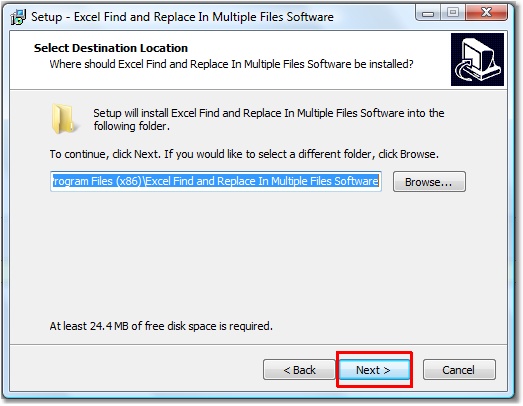
| 6.) The "Select Destination Location" prompt allows you to choose where the program files will be installed. If you are happy with the default setting displayed here, simply click "Next" to continue. |
![]() |
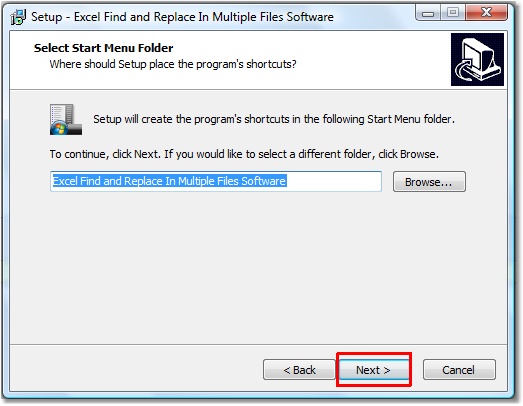
| 7.) The "Select Start Menu Folder" prompt allows you to choose where the shortcuts will be installed in the Start > Programs menu. If you are happy with the default setting displayed here, simply click "Next" to continue. |
![]() |
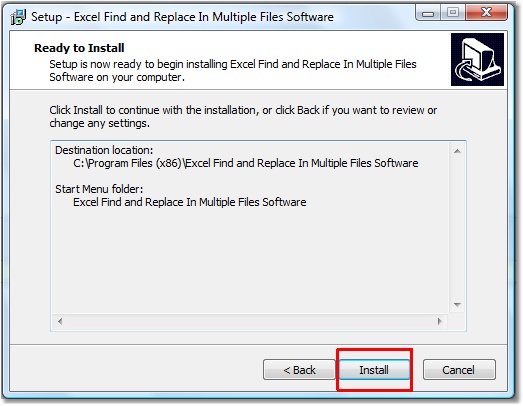
| 8.) The "Ready to Install" screen reviews the destination folder and Start Menu folder. Click "Install" to begin. |
![]() |
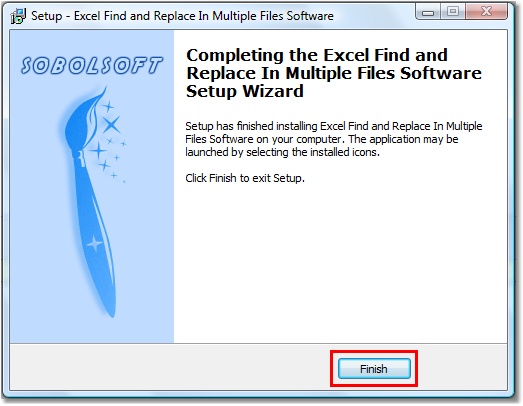
| 9.) The last screen confirms that your installation was successful. Click "Finish" to finish installation. |
![]() |
| 10.) Look for the icon to the newly installed software on your Desktop or in the Start > Programs menu. |
| Other links: |
| Return Home (www.sobolsoft.com) |
| See Common Questions |